Getting started
Join with your Google or Apple account. There's no separate password: signing in for the first time creates your account, and you must be at least 13. Everything apart from the home page, this guide, your public portfolio and the legal pages is for signed-in members.
The website and the app are organised the same way, so every feature has one home on both:
- Gallery and Explore: members' photos, and what's popular.
- Blogs: members' blog posts.
- Community: clubs, photo walks and challenges.
- Places: your private map of places you've been.
- + Create: upload photos, write a post, organise a walk, start a club or a collection.
- Your own things: on the website, the menu under your picture (profile, collections, clubs, portfolio, Insights, Settings); in the app, the Me tab.

Sharing photos
Uploading
Choose + Create → Upload a photo. PhotoCommunity takes JPEG, PNG, WebP and iPhone HEIC files up to 25 MB. Give it a title, and if you like a description, tags and the place it was taken. Upload several photos takes up to 20 at once, each with its own title and sharing the rest; in the app, just pick several.
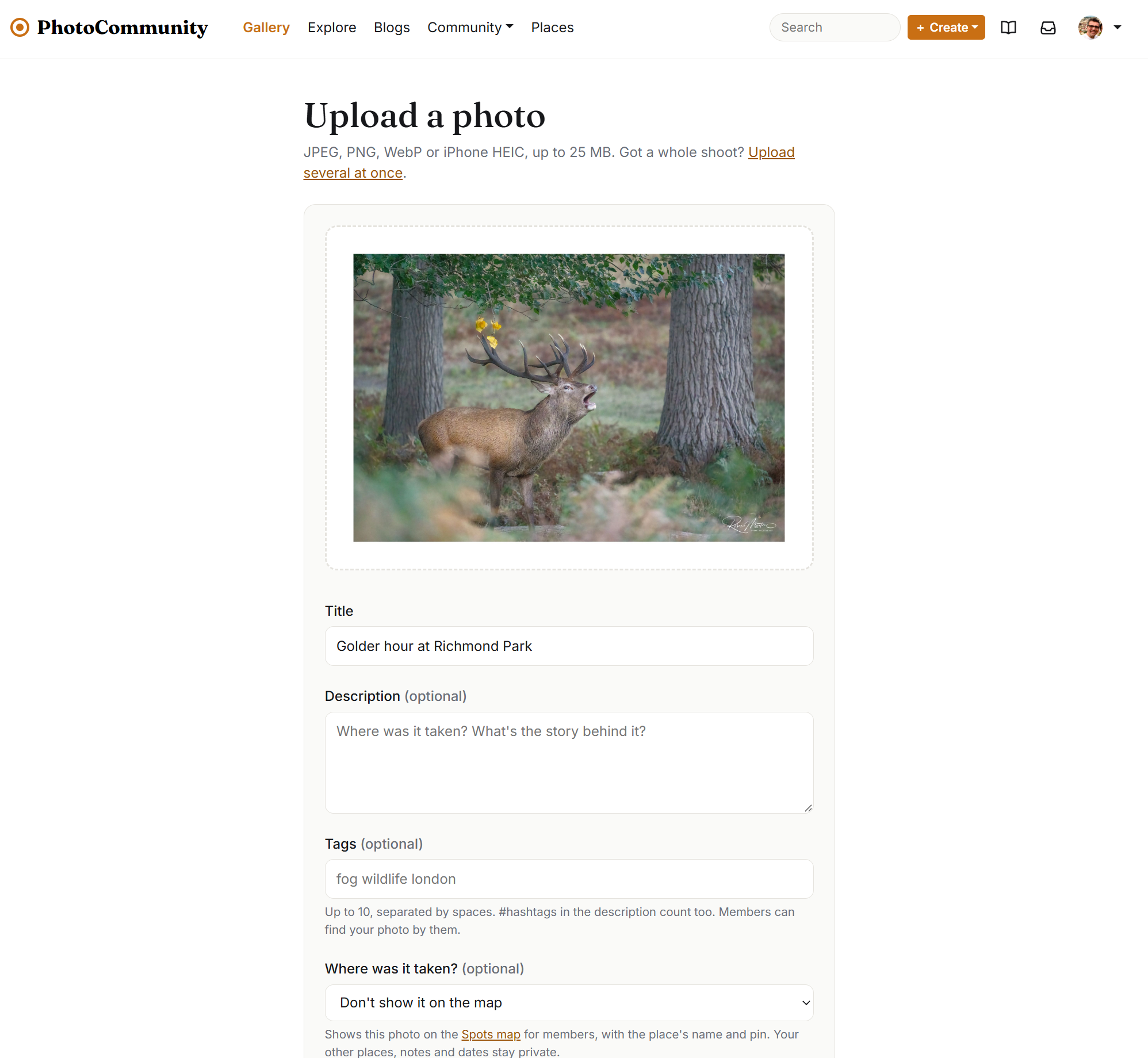
The camera, lens, focal length, aperture and ISO are read from the photo and shown on its page. Location data is always removed from the file, so nobody can see where a photo was taken unless you choose a place.
A new photo appears in the gallery once a moderator has approved it. Until then you'll see it marked Waiting for approval. If it's turned down, you'll see the reason and can delete it.
Choices when uploading
- Add my name as a watermark puts "© your name" in the corner. It becomes part of the image, so decide when uploading: it can't be added or removed later.
- Allow downloads (on by default). Turn it off and other members don't get the full-size link, and saving the image is blocked.
- Ask for feedback invites other members to rate the photo (see below).
- Show on the PhotoCommunity home page adds it to the public slideshow on the home page.
- Share to clubs adds it to the photo feed of clubs you're in.
Tags
Add up to 10 tags, such as fog wildlife london. #hashtags in the description count too. Tags show under the photo; click one to see every photo with it.
Where it was taken
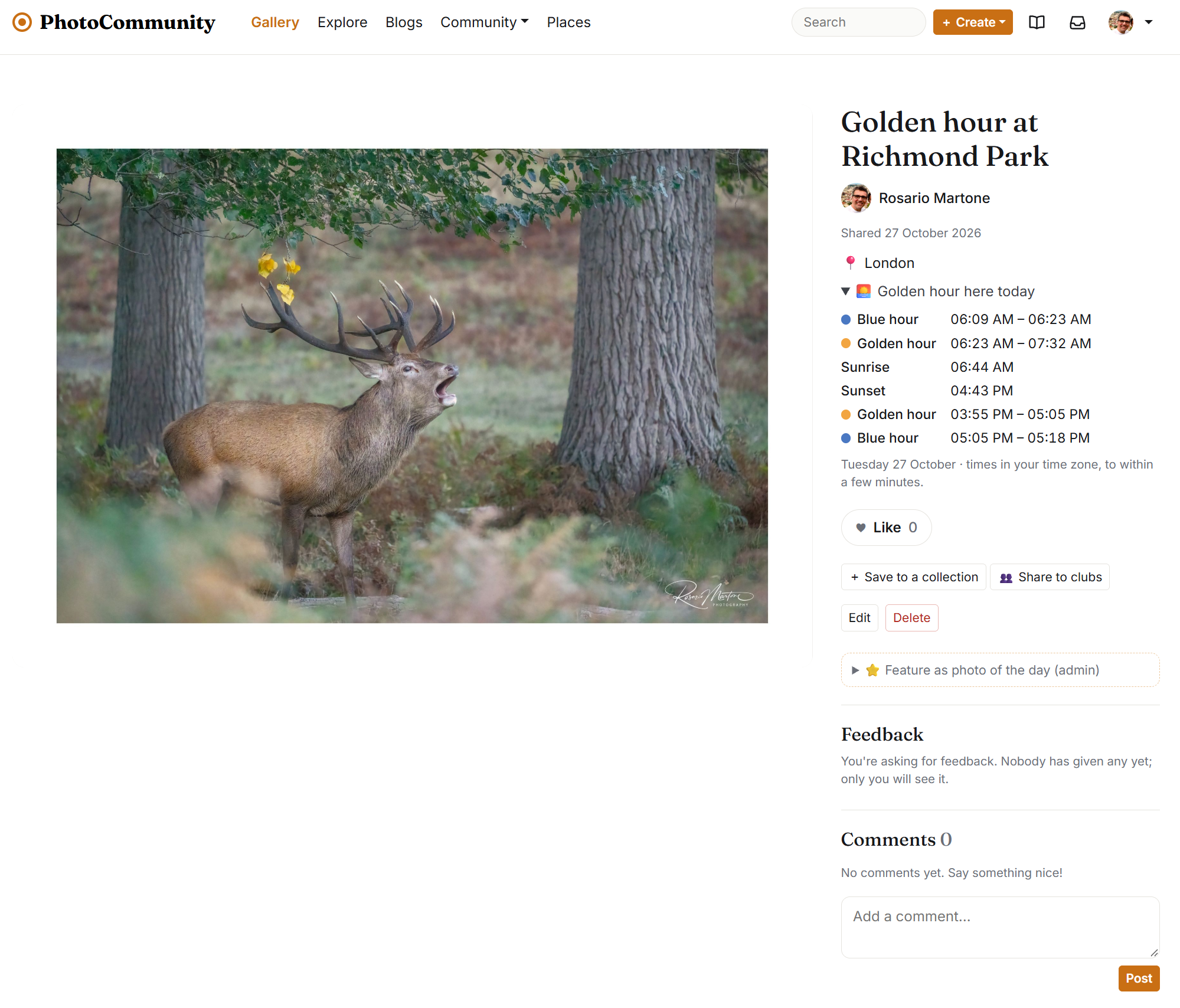
Pick one of your places and the photo shows "📍 place name" and appears on the Spots map (the button on the Gallery). Only that place's name and position are shared; its notes and your other places stay private.
Before & after
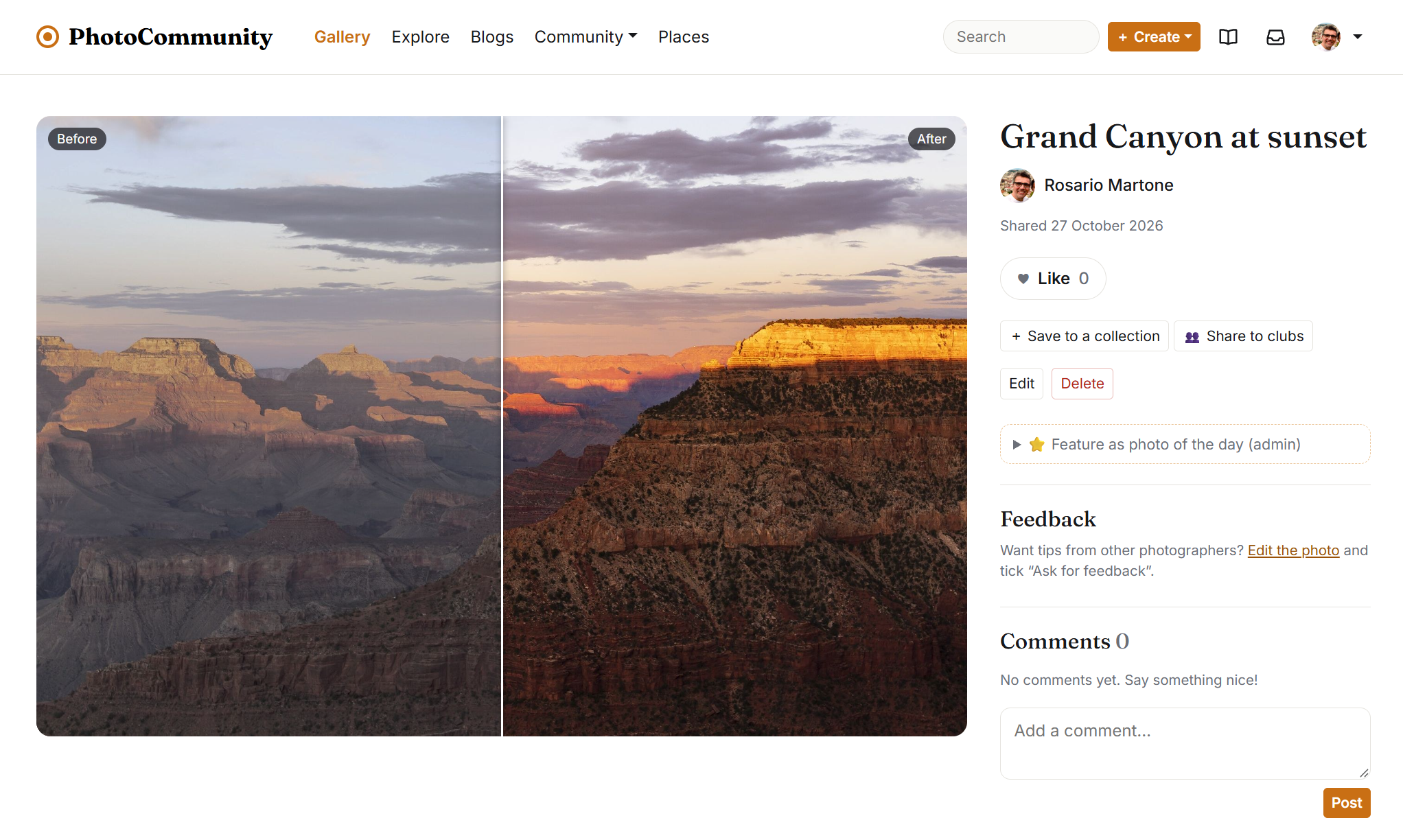
On a photo's Edit page you can add the unedited shot. The photo page then has a slider: drag across the photo to compare the two (or use the arrow keys). In the app, a button swaps between them.
Feedback
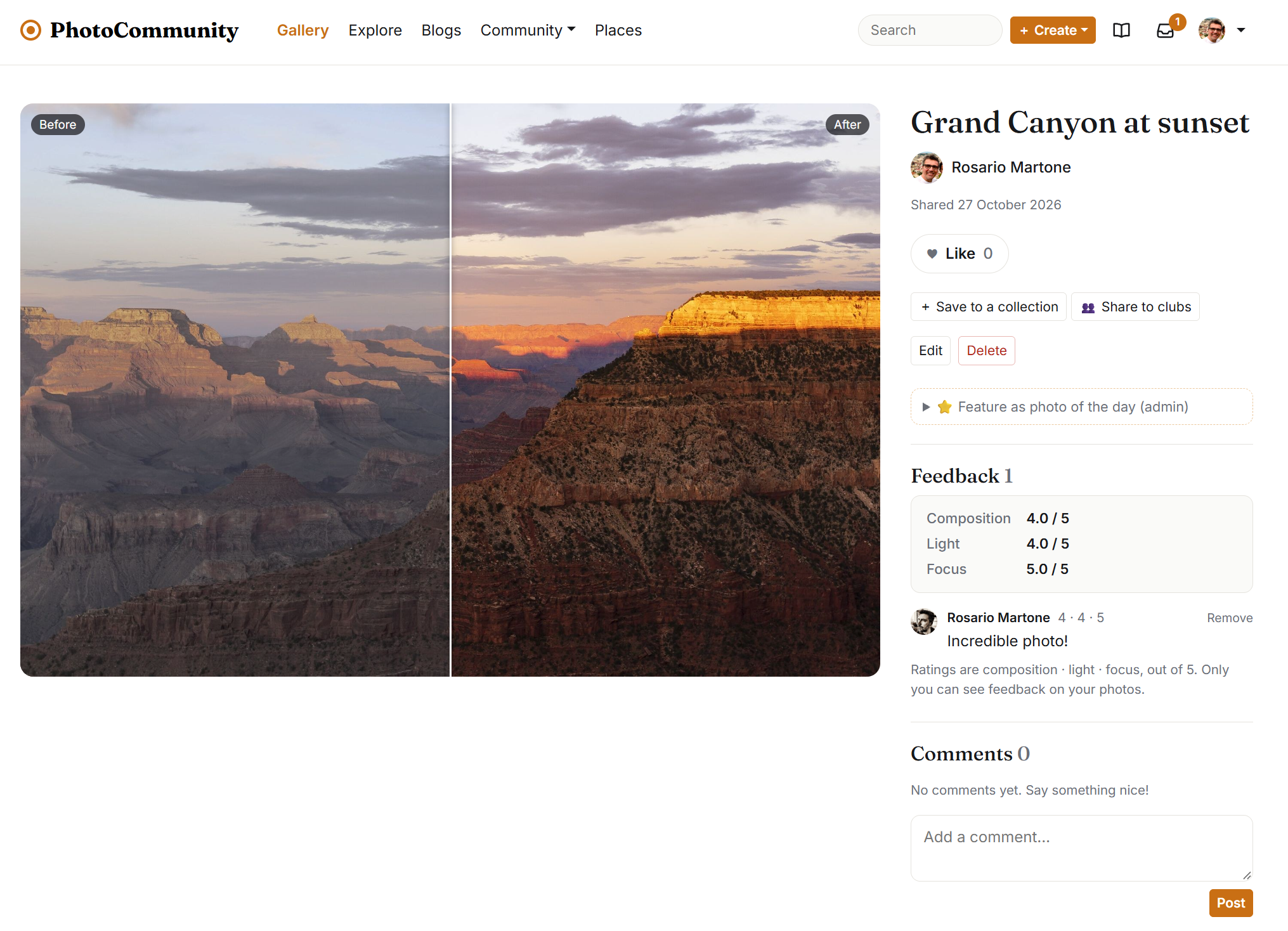
On a photo that asks for feedback, other members rate composition, light and focus from 1 to 5 and can add a comment. Feedback is private: the photographer sees all of it with the averages, you see your own, and everyone else only how many people gave feedback. The Gallery can show just the photos asking for feedback.
Likes, comments and editing
Like and comment on any photo you can see. On your own photos, Edit changes the title, description, tags, place and choices above, and Delete removes the photo for good.
Gallery, Explore and search
The Gallery shows members' newest photos. Switch between Everyone and Following (just the people you follow), and use Filter by camera settings to narrow it by camera, lens, focal length, aperture or ISO. On a photo's page, the camera details are links to every photo taken with the same.
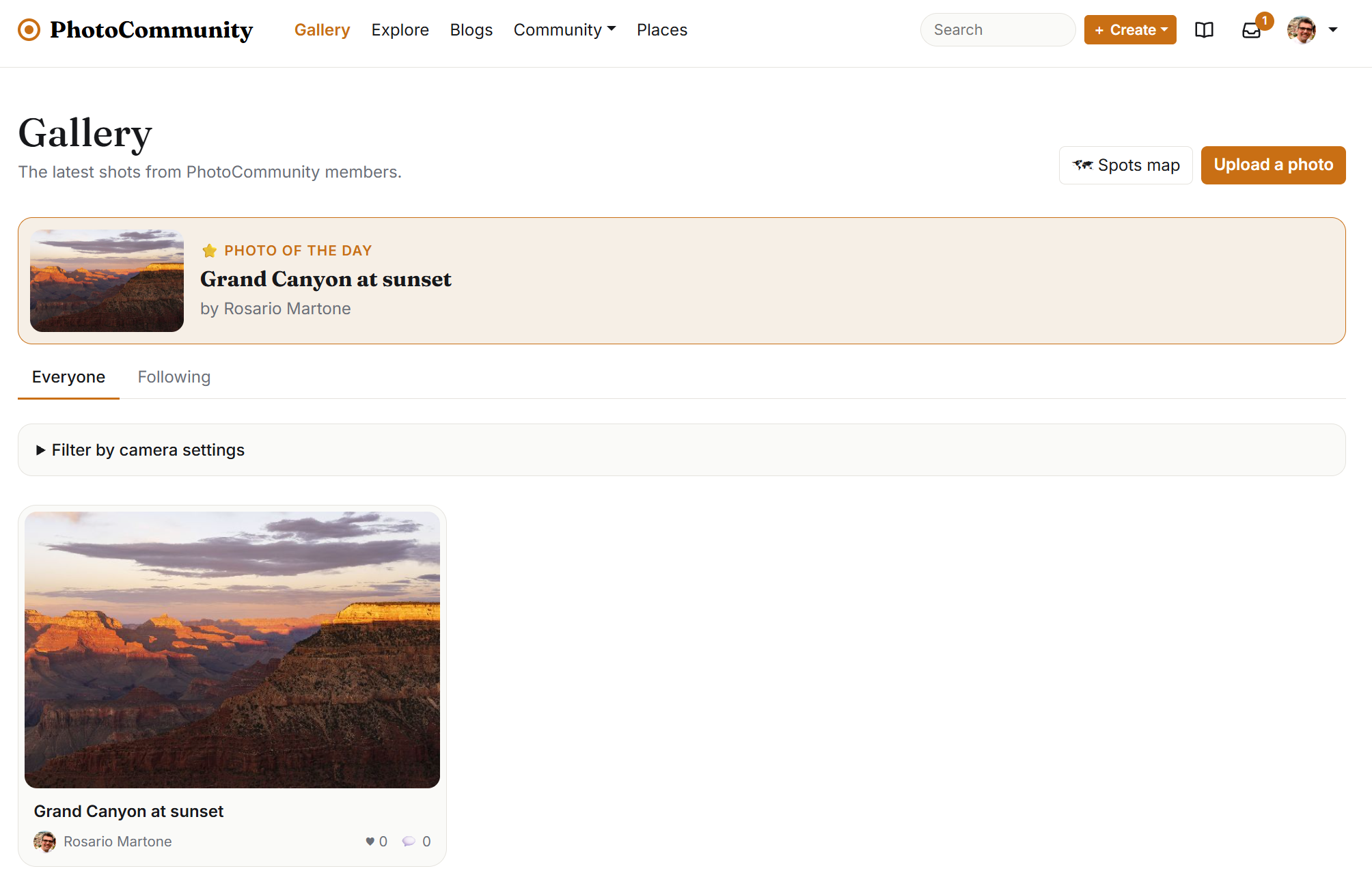
Explore shows the week's trending tags, popular photos by people you don't follow yet, and photographers you might like. Each day a moderator picks a ⭐ Photo of the day, shown at the top of the Gallery and Explore.
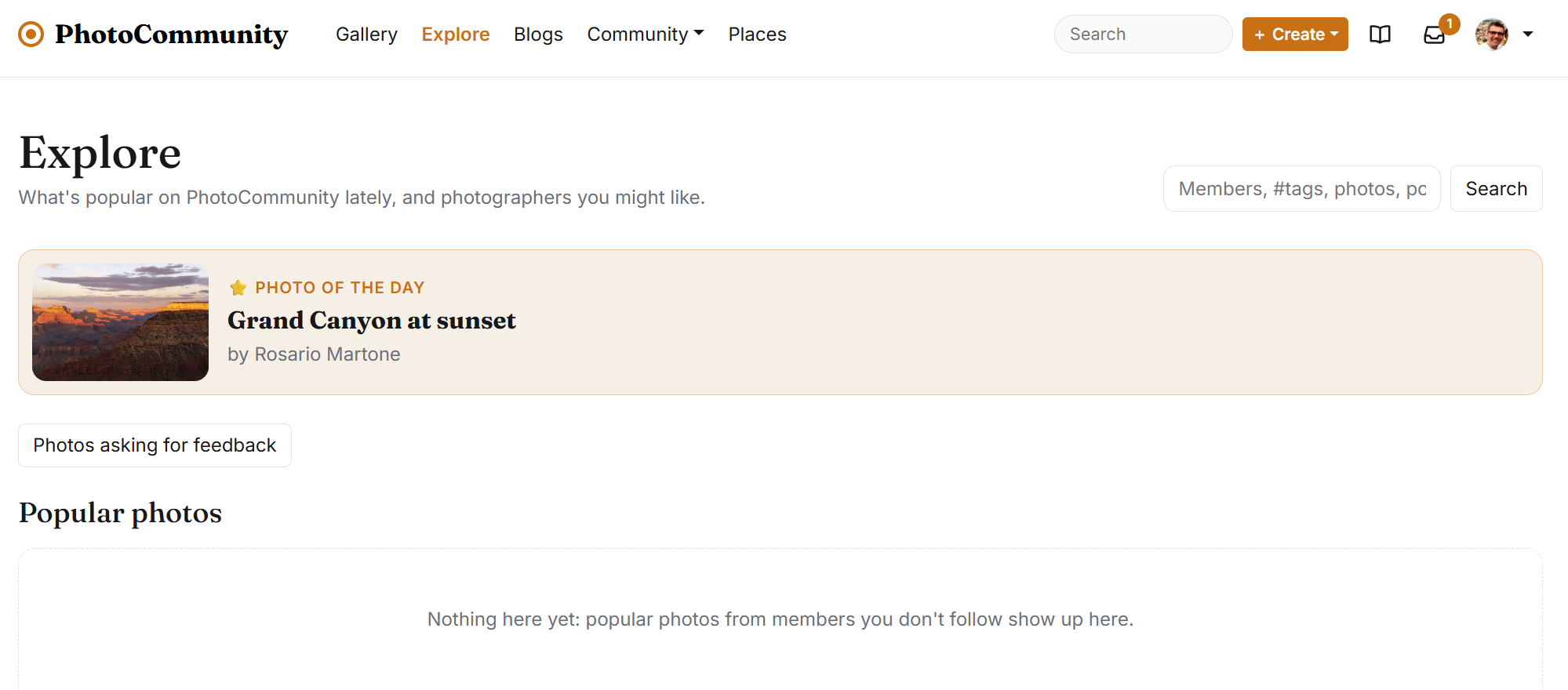
Search (the box at the top of the website, or the search icon in the app) finds members, photos, tags and blog posts. Type #fog to go straight to a tag.
Follow members from their page to see their photos and posts under Following and to hear when they share something new.
Collections
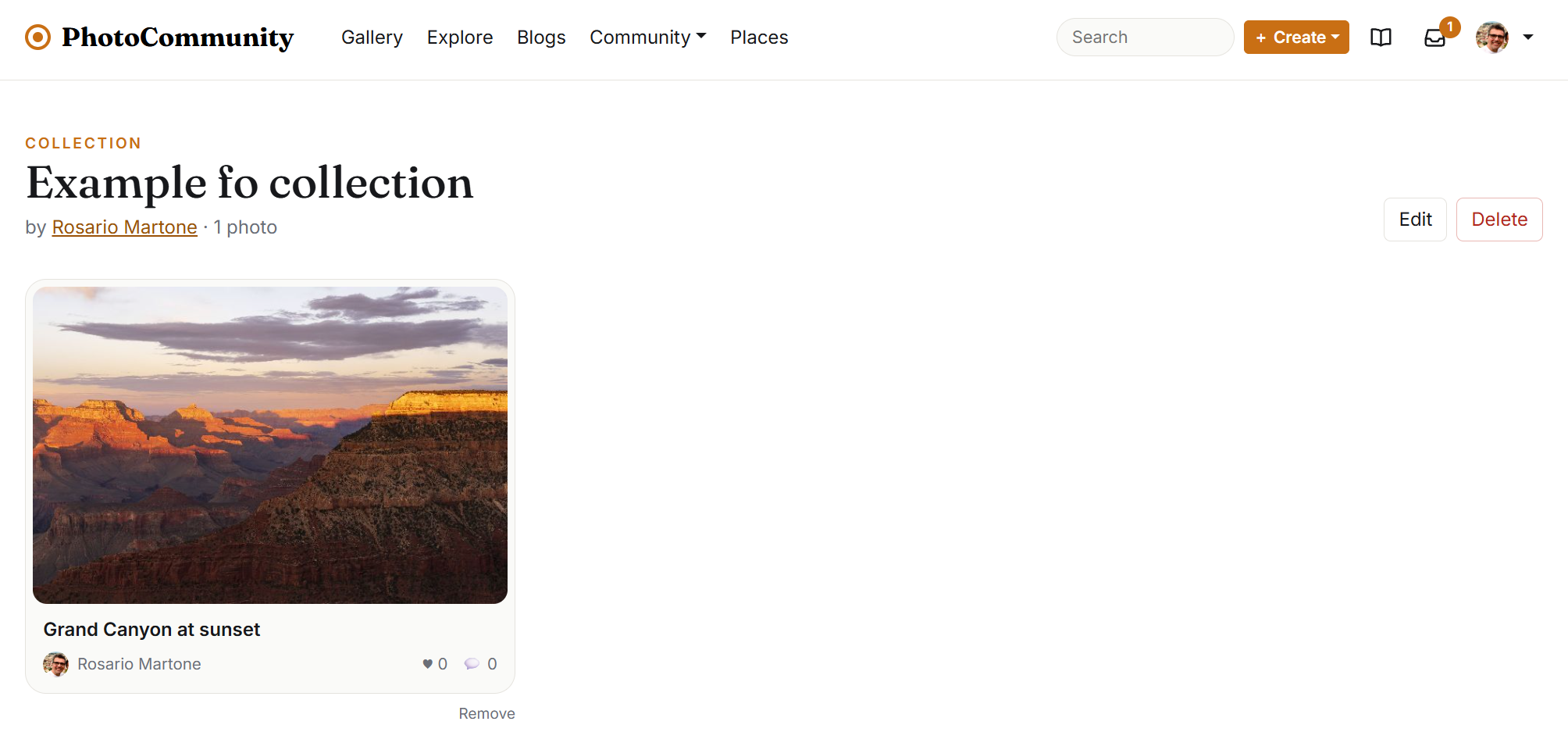
Save any photo you can see, yours or someone else's, to a collection with Save to a collection on its page (+ Save in the app). Collections are private unless you make them public, in which case they're listed on your member page. You can have up to 100 collections of up to 1,000 photos each. Deleting a collection leaves the photos alone.
Blogs
Every member has a blog. Give it a title and an introduction under Blog settings, then choose + Create → Write a blog post (on the website). The editor has headings, bold, italic, lists, quotes, links and a photo button that adds photos from your gallery or uploads new ones.
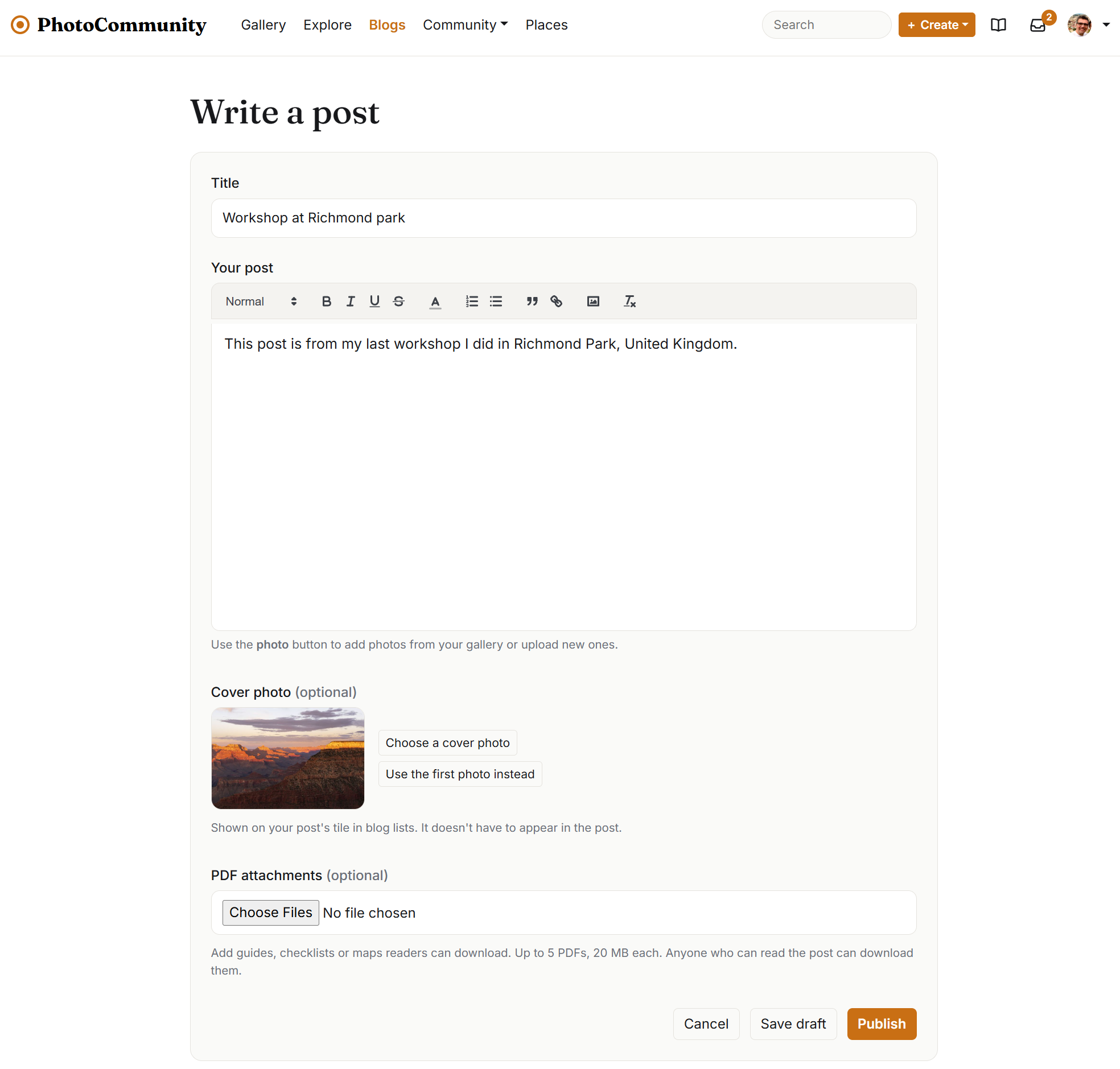
- Cover photo: the photo on the post's tile. Without a choice, it's the first photo in the post.
- PDF attachments: attach up to 5 PDFs (20 MB each), such as guides or maps, for readers to download.
- Drafts are visible only to you until you're ready.
- Submit for approval sends the post to the moderators. Once approved it's published and your followers hear about it. If it's sent back, you'll see the reason; edit it and submit again. Editing a published post doesn't send it back.
Members comment on published posts, and both the comment's author and the post's author can delete a comment.
Photo challenges
Community → Challenges are themes to shoot for. While a challenge is open, enter up to 3 of your own photos; you can withdraw them until it ends.
Votes are likes: a like from another member counts if it's given between the moment the photo was entered and the end of the challenge. The entry with the most votes wins (on a tie, the one entered first), and the winner gets a trophy on their member page. Clubs can run their own challenges for their members, too.
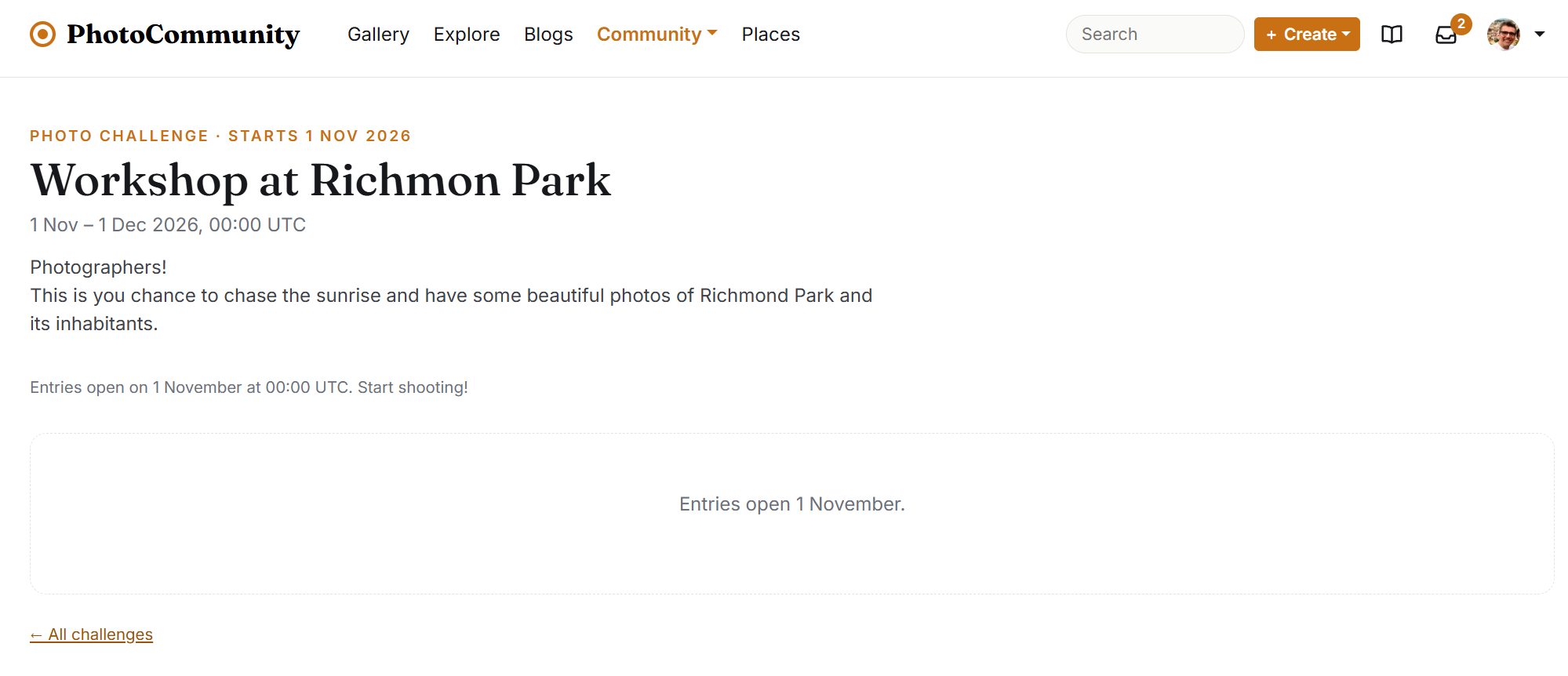
Photo walks
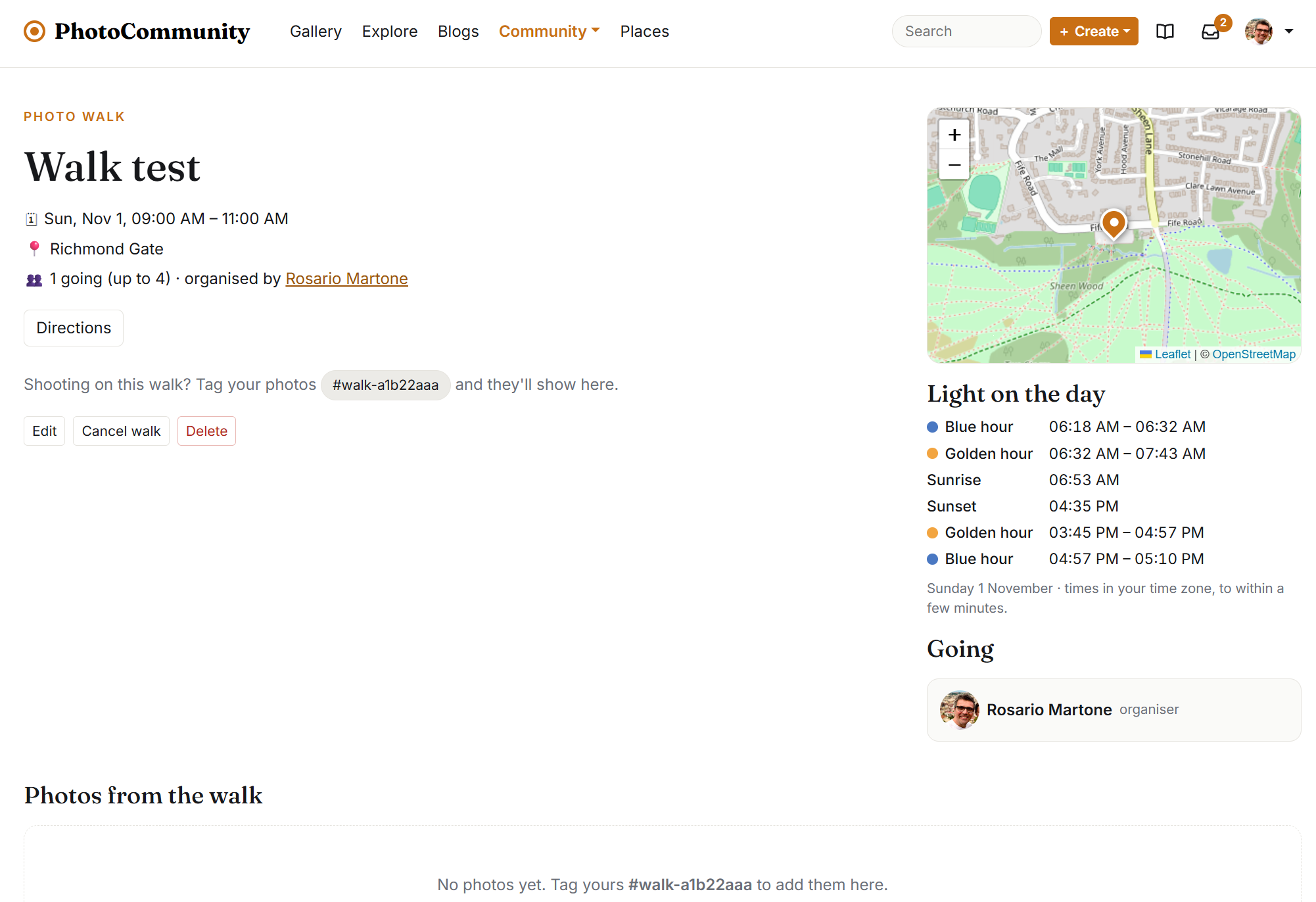
Walks are meetups to shoot together. Choose + Create → Organise a photo walk, give it a title, a plan, a start time and length (up to 12 hours), an optional limit on people, and a meeting point on the map. Walks can be for everyone or just for one of your clubs.
Members join and leave until it starts, and everyone going gets a reminder in the day before it starts and hears about any changes. Directions opens your maps app with the route to the meeting point, on foot, by car or by public transport. Each walk page also shows the light on the day (golden and blue hours, sunrise and sunset) and which of them the walk catches.
Each walk has its own tag, such as walk-1a2b3c4d. Tag your photos from the walk with it and they appear on the walk's page.
Camera clubs
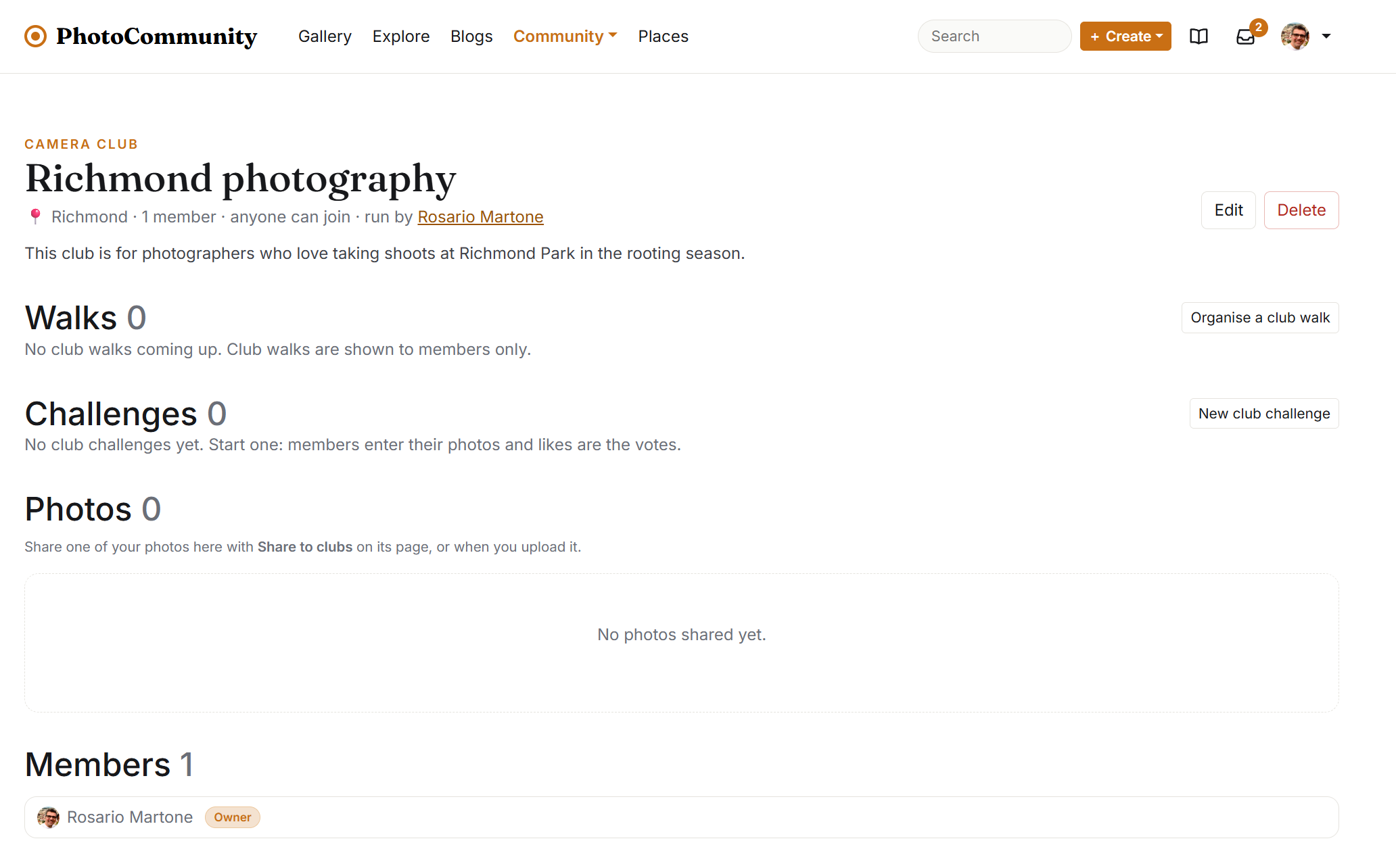
Community → Clubs lists local camera clubs, biggest first. Search by name or city, or sort by distance from one of your places (in the app, Near me uses your approximate location). My clubs lists the ones you own, run, belong to or asked to join.
- Joining. Some clubs let anyone join; others ask you to request, and the club's admins let you in.
- Photo feed. Share your photos to clubs you're in with Share to clubs on a photo's page. Members hear about new club photos at most once a day.
- Club walks and challenges are seen and joined by the club's members only.
- Starting a club. Choose + Create → Start a club (up to 3): a name, the city where you meet, an optional area, a description and how people join. A new club is checked by the moderators before it's listed.
- Running one. The owner and the club's admins edit the club, let people in and remove members, and can pick the club's cover photo. Only the owner makes admins, hands the club over or deletes it.
Places and light
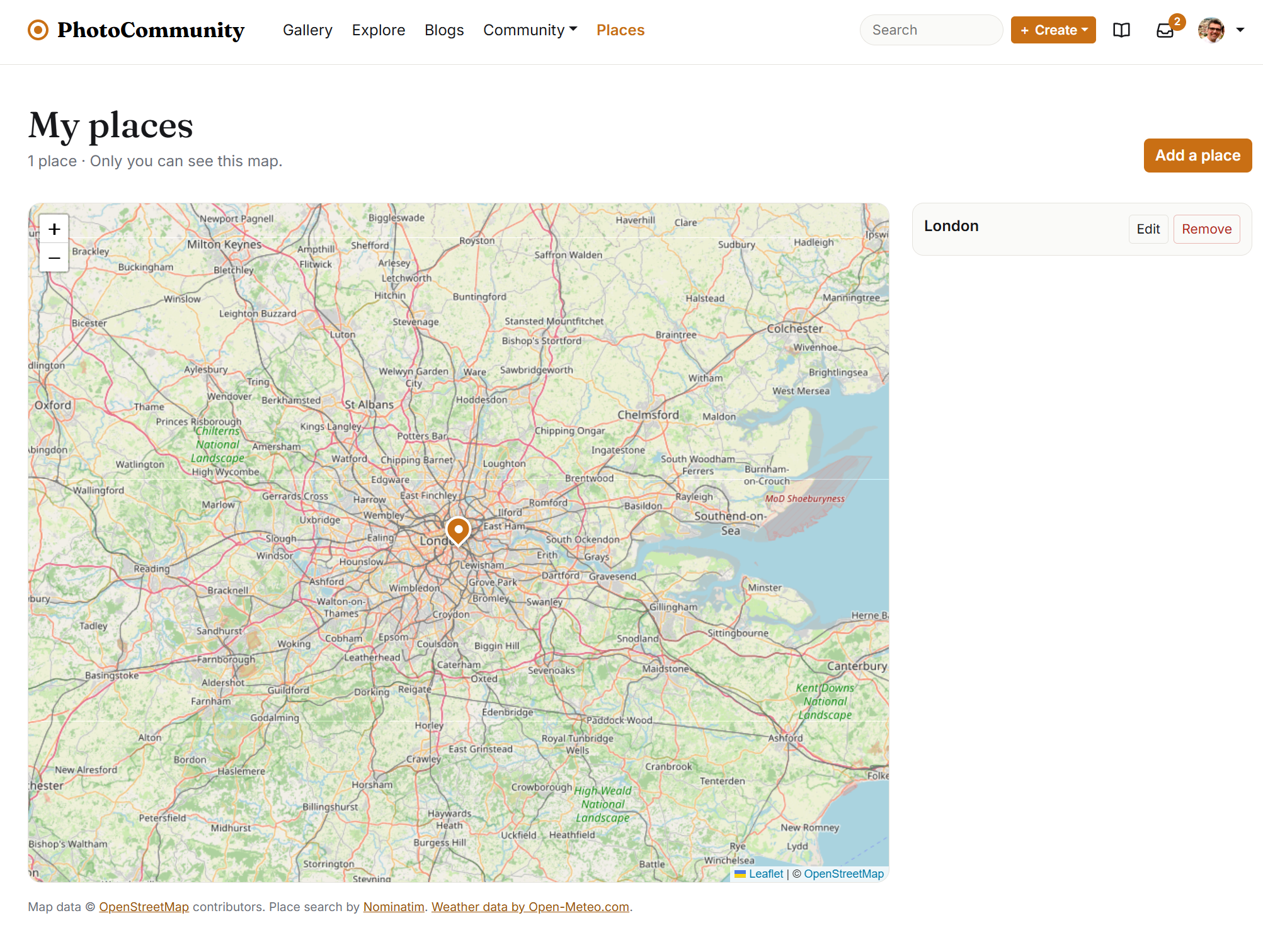
Places is your private map of the places you've been or want to go. Search for a place or click the map to drop a pin, then add a name, a visit date and notes. Nobody else can see your places, apart from a place you link to a photo (just its name and position).
Light forecasts
Open a place to see its next three days of morning and evening golden hours, each rated from the weather forecast:
- ☀️ Clear: little cloud and little chance of rain.
- 🌅 Dramatic: a clear horizon with higher cloud to catch the light.
- ☁️ Poor: low cloud, a grey sky or likely rain.
Tick Tell me when the light looks good here on up to 10 places, and you'll get a message in the evening when tomorrow's golden hour there looks clear or dramatic. A photo linked to a place also shows a Golden hour here today panel.
Your profile and portfolio
Your member page shows your photos, your public collections, your blog, any challenge trophies, and how many people follow you and you follow.
My portfolio is a page about you that anyone can open, without signing in, at an address of your choosing such as /p/ana-silva: your name, picture, a short bio, optional website, Instagram and contact email, and up to 24 of your photos in the order you choose. It's off until you switch it on, and only approved photos can be shown. It's a good link to share elsewhere.
Insights
Insights (in the menu under your picture, or the app's Me tab) compares your last 30 days with the 30 before: views, likes, new followers and comments, a chart of views and likes per day, your top photos and the tags that get the most likes. A view is another signed-in member opening a photo's page; your own views don't count, and PhotoCommunity never records who viewed.
Activity and emails
Activity (the inbox icon at the top of the website, or in the app) tells you when someone likes or comments on your photos, comments on your posts or follows you; when people you follow share photos, posts or walks; about challenges, clubs and walks you're part of; and about good light at your places. Choose which kinds you get in Settings, where the app can also send them to your phone.
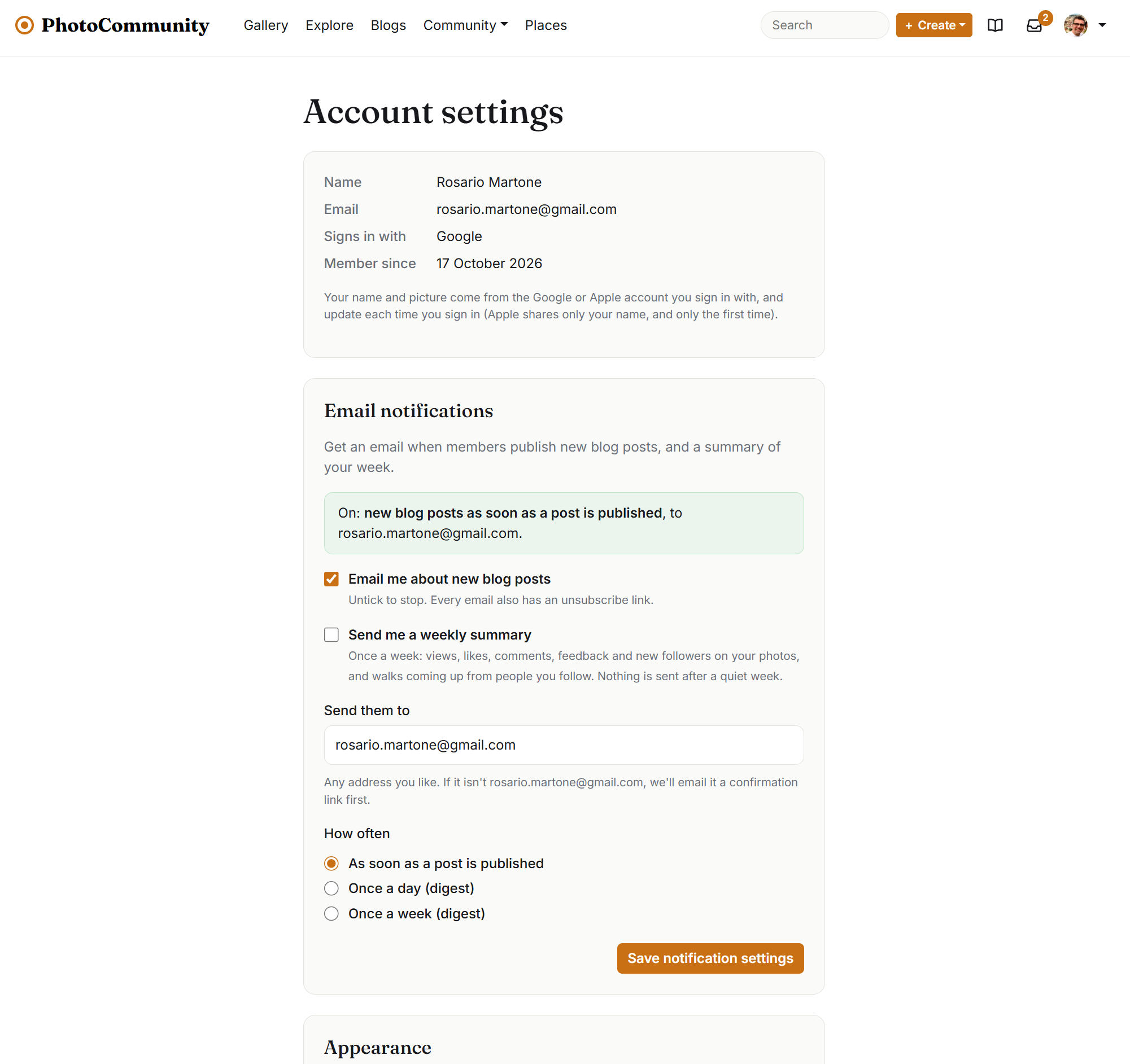
Emails are optional. In Settings you can get new blog posts by email, as they're published or as a daily or weekly digest, and a weekly summary of how your photos did. A new email address is confirmed first, and every email has an unsubscribe link.
Settings and appearance
Settings (under your picture on the website, Me → Settings in the app) has the same sections on both: Appearance, Activity, email notifications, blocked members and your account.
- Appearance: Light, Dark or Automatic (follows your device). The moon and sun icon switches quickly, and on the website the menu under your picture has the same choice.
- Deleting your account: at the bottom of Settings, by typing DELETE to confirm. Everything you shared is deleted with it, and it can't be undone.
- Cookie settings is in every page's footer. PhotoCommunity uses no advertising or tracking cookies.
Reporting and blocking
Use Report on any photo, comment, blog post, blog comment or club that breaks the Terms of Use. Content reported by several members is hidden while the moderators look at it, usually within 24 hours.
Block a member from their page and you stop seeing their photos, posts and comments, and they can't follow you or comment on your things. They aren't told. Unblock them from Settings at any time.
The app
PhotoCommunity has an app for iPhone, iPad and Android with the same account. Its tabs follow the website: Gallery (with Explore, search, Activity and +), Blogs, Community (your next walks and the open challenges), Places and Me. You can upload straight from the camera. Writing blog posts and creating challenges are on the website only.
Questions about your data are answered in the Privacy Policy, and the rules of the community in the Terms of Use.